




Your content is gold—insightful, engaging, and genuinely helpful—but without the right SEO foundation, it risks vanishing in the vast expanse of the internet. Thankfully, WordPress is uniquely poised to bridge the gap between remarkable content and real-world visibility, even if you’re not a developer. This guide, will help you’ll discover straightforward, non-technical strategies to transform your WordPress CMS into an SEO powerhouse—and start watching organic traffic roll in.
Why WordPress Excels at SEO (Without Code)
WordPress powers over 40% of the web, and a big part of its popularity lies in its built-in SEO friendliness.
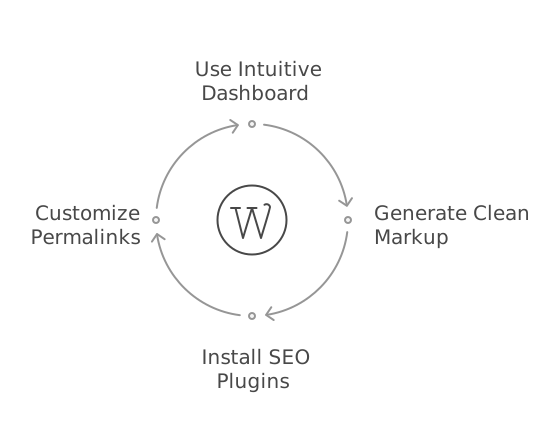
Here’s why:
Intuitive Dashboard
From publishing blog posts to tweaking site settings, the WordPress admin is designed for non-developers. You don’t need to touch a line of code to optimize your site.
Clean, Semantic Markup
WordPress generates standards-compliant HTML that search engines love to crawl. This means your pages are inherently easier for Google to index.
Extensible Plugin Ecosystem
Thousands of plugins let you add or enhance SEO functionality without technical know-how. Whether it’s generating sitemaps or adding schema, there’s a plugin for that.
Customizable Permalinks
Human-readable URLs (e.g., yourdomain.com/services/seo-audit) boost both click-through rates and keyword relevance—configured in a few clicks under Settings → Permalinks.
Key takeaway: With WordPress, you get an SEO foundation right out of the box—no coding required.
Suggested reading:
What is WordPress CMS A Beginner’s Guide to Setup, Customization, and Use Cases
Laying a Solid SEO Foundation at Setup
A strong SEO posture starts with the basics.
Implement these steps immediately after installation:
Please Note:
The following steps focus on settings you can implement without using an SEO plugin like Rank Math.
1. Select Fast, Reliable Hosting
- Look for WordPress-optimized hosts offering SSD storage, global CDN integration, and automatic backups.
For example, Cloudways provides a managed SEO-focused platform—ThunderStack—that’s specifically engineered for fast load times, which are critical ranking factors. Cloudways’ ThunderStack combines NGINX, Varnish, Apache, and Redis to deliver consistently low TTFB (Time To First Byte) and rapid page rendering.
- Every Cloudways server includes a dedicated IP, giving you greater control over DNS and reputation—both of which can indirectly influence SEO (e.g., SSL issuance and SSL-based security features).
- Ensure any host (Cloudways, SiteGround, Kinsta, etc.) you choose provides at least a 99.9% uptime SLA and free SSL (HTTPS). Page speed and security are explicit ranking signals.
2. Configure Friendly Permalinks
- Navigate to Settings → Permalinks, select Post name, and save.
- This clean structure helps search engines and users understand page topics at a glance.
3. Set a Descriptive Site Title & Tagline
- Under Settings → General, include your primary keyword in the Site Title (e.g., “Aweb Automate: WordPress CMS for SEO Experts”).
- Use the Tagline to expand on your value proposition, but keep it concise.
4. Enable HTTPS
- Activate your free SSL certificate via your host’s control panel, then update WordPress URLs under Settings → General to https://.
- Use a plugin like Really Simple SSL (a lightweight option) to handle any mixed-content issues automatically.
5. Install a Maintenance Plugin
- For staging or planned downtime, use a plugin (e.g., WP Maintenance Mode) to display a friendly coming-soon page, preventing broken-indexing issues while you configure settings.
Is Your Business Ready to Shine with Scalable WordPress Services?
Discover the power of WordPress solutions tailored for growth and impact. From bespoke design and development to security, performance, and lead generation, create a website that not only looks great but drives measurable success.
Harnessing Plugins as Your SEO Sidekicks
Plugins transform complex SEO tasks into click-and-go actions.
Here’s how common SEO plugins can streamline your workflow:
| Feature | Yoast SEO | Rank Math | AIOSEO |
|---|---|---|---|
| On-Page Analysis | Readability & keyword | Rich snippet previews | Content analysis |
| Meta Title & Description | Edit field in editor | Drag-and-drop snippet | Guided snippet editor |
| XML Sitemap Generation | Yes | Yes | Yes, with priority tags |
| Schema Markup | Basic | Advanced | No-code schema generator |
| Automated Campaigns | Yes | Yes | Yes |
Pro Tip:
Stick to a single SEO plugin—using more than one can cause compatibility issues, slow performance, and even confuse search crawlers.
We recommend Rank Math because it bundles advanced features (schema markup, XML sitemaps, and on-page analysis) into a lightweight, intuitive interface—so you don’t need extra add-ons.
If you’re undecided, install Rank Math (and any other contenders) on a staging environment first to see which dashboard you prefer.
Content Optimization: Your Non-Technical Strength
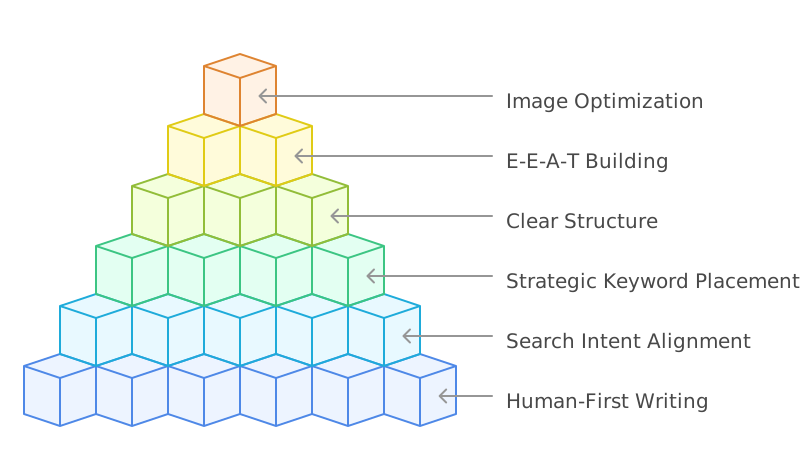
Your words, images, and structure determine how both users and search engines perceive value. Follow these principles:
a. Write for Humans First
- Solve real problems: Address questions your audience actually asks
- Engage & inform: Use conversational tone, clear examples, and a logical flow—this keeps readers (and search bots) on the page longer.
b. Understand & Match Search Intent
- Investigate SERPs: Before drafting, search your target keyword (e.g., “wordpress cms for seo”) and note the types of content ranking—guides, case studies, or lists.
- Align your format: If top results are how-to guides, structure yours similarly with numbered steps and screenshots.
c. Strategic Keyword Placement
- Primary keyword: Include naturally in the title, at least one subheading, opening paragraph, and meta description.
- Related terms (LSIs): Sprinkle semantically connected phrases (“SEO plugins for WordPress,” “improve site crawlability”) throughout to cover topic breadth.
d. Clear, Scannable Structure
- Use H1 for your main title, then H2/H3 for subsection headings.
- Break paragraphs into 2–3 lines max, and use bullet lists to highlight key points.
e. Build E-E-A-T
(Experience, Expertise, Authoritativeness, Trustworthiness)
- Author Bio: Add credentials or a brief note on your experience with WordPress and SEO.
- Cite reputable sources: Link to industry authorities—Google’s own guides, reputable blogs, or case studies.
- Display social proof: Embed testimonials or quotes from clients who saw traffic gains.
f. Optimize Images (Visually & for SEO)
- Descriptive filenames: Rename images to
wp-seo-dashboard.pngbefore uploading. - Alt Text: In Media Library, add concise alt descriptions—e.g., “Screenshot of Yoast SEO snippet preview.”
- Compression: Use a plugin like Smush or ShortPixel to reduce file size without quality loss.

Suggested reading:
CRM Marketing Automation: A Complete Guide to Streamline Your Sales and Marketing
Snippet Optimization: Your Virtual “Ad” in SERPs
Your page’s title and meta description directly influence click-through rates:
- SEO Title: Keep under ~60 characters, include your keyword near the front (e.g., “WordPress CMS for SEO: 8 Non-Technical Tips to Boost Traffic”).
- Meta Description: Aim for 150–160 characters. Summarize user benefit (“Learn simple WordPress dashboard tricks and plugins to skyrocket organic traffic—no coding needed.”).
Most SEO plugins offer real-time snippet previews—use them to adjust copy until it reads like a compelling mini-ad.
Internal Linking & Cornerstone Content
Effective internal linking amplifies authority and keeps visitors exploring:
Identify Cornerstone Pages
These are your flagship resources—comprehensive guides, service pages, or case studies.
Link from Supporting Posts
Whenever a blog post mentions a topic covered in a cornerstone page, add a contextual link (anchor text = target keyword).
Use Plugin Helpers
Tools like AIOSEO’s Link Assistant suggest relevant links as you write.
This approach distributes “link juice” to your most important pages, helping them rank higher.
User Experience Tweaks via WordPress Settings
A satisfied visitor signals value to search engines:
- Site Navigation: Under Appearance → Menus, create logical, top-level categories (e.g., “Services,” “Blog,” “Resources”). Avoid over-nesting.
- Categories & Tags: Limit categories to 5–7 core topics; use tags sparingly to connect related posts.
- 404 & Redirect Management: Install a redirect plugin (e.g., Redirection) to catch broken links, set up 301 redirects, and monitor 404 errors.
- Mobile Responsiveness: Choose an SEO-friendly, responsive theme. Test pages with Google’s Mobile-Friendly Test and address any flagged issues.
Is Your Business Making the Most with Salesforce CRM?
Transform customer relationships and supercharge growth with expert Salesforce CRM services. From seamless implementation and data integration to workflow automation and performance analytics, unlock the power of personalized engagement and efficient business processes.
Ongoing Monitoring with Free Tools
Track progress and troubleshoot issues with Google’s free suite:
Google Search Console (GSC)
- Performance Report: See clicks, impressions, and average position for each keyword.
- Coverage Report: Identify crawl errors and indexing issues.
- URL Inspection: Check how Google sees specific pages.
Google Analytics 4 (GA4)
- Traffic Sources: Understand which channels (organic search, direct, social) bring the most visitors.
- User Engagement: Monitor bounce rate, session duration, and page views per session.
- Goal Conversions: Define actions (form fills, downloads) to measure ROI of your content.
Plugin Dashboards
Many SEO plugins include basic analytics within WordPress—use these for quick insights without leaving your dashboard.
The Manual Option: A Peek Behind the Curtain
If someday you outgrow plugins, you can tackle these tasks manually:
- Meta Tags: Edit your theme’s
header.phpto insert<meta>tags. - Custom XML Sitemap: Create a
sitemap.xmland add it to your root directory, then submit in GSC. - Schema Markup: Hand-code JSON-LD snippets in your theme’s
functions.php - .htaccess Redirects: Manage 301s at the server level for faster processing.
While manual methods offer ultimate control, they require coding skill and more maintenance—so for non-tech users, plugins remain your best friend.
Key Takeaways & Next Steps For You
- Leverage WordPress’s Built-In SEO: Clean code, intuitive settings, and a massive plugin library let you optimize without coding.
- Focus on Quality Content: Human-first writing, clear structure, and intent matching are your greatest levers.
- Use One Robust SEO Plugin: Automate technical tasks—sitemaps, schema, snippet editing—in a friendly interface.
- Optimize Continuously: SEO is iterative—refresh old posts, add new internal links, and monitor performance monthly.
- Prioritize User Experience: Fast hosting, clear navigation, and mobile-friendly design keep visitors happy and coming back.
Now it’s your turn: pick one recommendation above, implement it in your WordPress dashboard today, and watch your WordPress CMS for SEO strategy drive real organic traffic.
Success in search is no longer reserved for developers—armed with these non-technical tactics, you’re ready to claim your spot on page one. Good luck, and happy optimizing!
Transform your website from hidden gem to search engine standout with these practical WordPress CMS SEO strategies. Let’s work together to elevate your online presence and drive the organic traffic your business deserves.