


Have you been planning on launching a blog, creating a stunning portfolio, setting up an online shop, or perhaps building a professional website for your business?
You’re in the right place!
You might have heard the name “WordPress” floating around, and for good reason! It’s not just a popular tool; it’s the most popular content management system (CMS) in the world, powering over 43% of all websites on the internet today.
That’s almost half of the web!
It’s used by everyone from individual bloggers to massive corporations and media platforms.
But what exactly is WordPress CMS, and how can you use it to bring your online visions to life?
That’s what this guide is all about!
We’re here to show you just how powerful, flexible, and surprisingly beginner-friendly this platform is. You absolutely do not need technical skills or coding knowledge to get started. Seriously! Just follow along, and you’ll be well on your way to creating something incredible.
What is WordPress CMS?
Okay, let’s undertand the term “CMS” first.
CMS stands for Content Management System.
Think of it as a user-friendly platform that helps you create, manage, and publish content on the web without needing to write code from scratch. Before CMS platforms like WordPress, building a website meant writing every single page and element using code languages like HTML and CSS.
Adding a simple blog post or changing a picture was a whole technical process!
WordPress swooped in to change all that. It was originally launched way back in 2003 as a tool primarily for blogging. It was built on top of a previous project called b2/cafelog. But wow, has it evolved!
Today, it’s a robust CMS capable of building almost any type of website you can imagine.
A core characteristic of WordPress is that it’s open-source software.
What does that mean for you?
It means the software is completely free to use, modify, and distribute. This is possible because it’s developed and supported by a huge, passionate community of developers, designers, and users from all around the world who are constantly working together to make it better. That community is also a massive source of free help and resources for beginners. How cool is that?!
Understanding the Two Sides: WordPress.org vs. WordPress.com
This is a point that confuses a lot of beginners, but don’t worry, we’ll make it super clear!
There are indeed two different versions of WordPress.
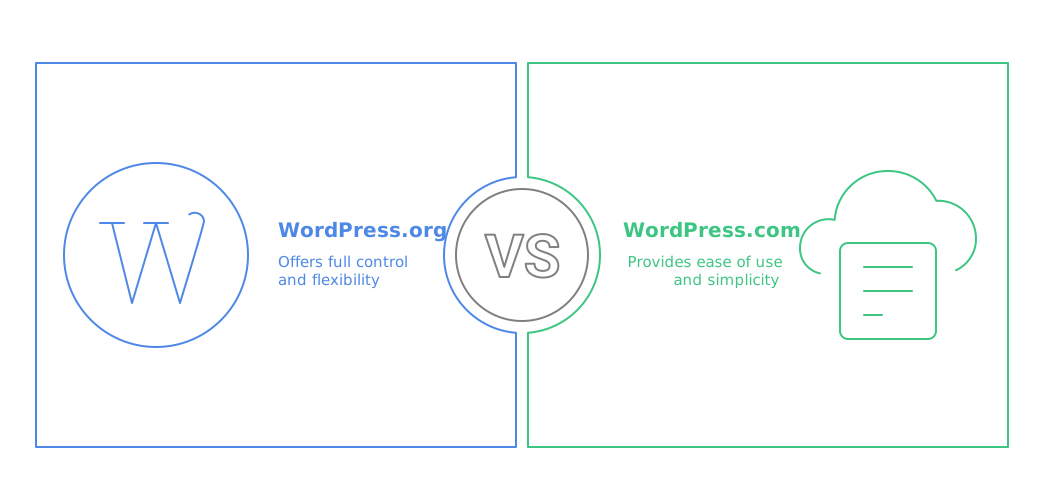
This is the one that gives you full power, control, and ownership over your website and content. To use WordPress.org, you need to purchase your own web hosting (where your website files live) and a domain name (your website’s address, like google.com or wpbeginner.com).
Because you host it yourself, you have the freedom to install any themes and plugins you want. While it requires a little more responsibility for updates and maintenance, this is the version most professionals and businesses choose and the focus of this guide.
This version offers a simpler, all-in-one solution where hosting is included. It’s easier to get started initially, especially with a free plan, but it comes with more limitations on customisation, theme choices, and the ability to install certain plugins, particularly on lower-tier plans. Many users find they quickly outgrow these limitations as their needs grow.
It can be a good starting point for a very simple personal blog or just experimenting, but if you want full control and scalability, WordPress.org is the way to go.
Just remember, when people talk about the power and flexibility of WordPress, they’re almost always talking about the self-hosted WordPress.org.
Suggested reading:
Everything You Need to Know About CRM Automation Reporting in 2025: Turn Your Data into Actionable Insights
Why Choose WordPress CMS? The Key Benefits
So, with other options out there, what makes WordPress so special?
Get ready to get excited, because the benefits are HUGE!
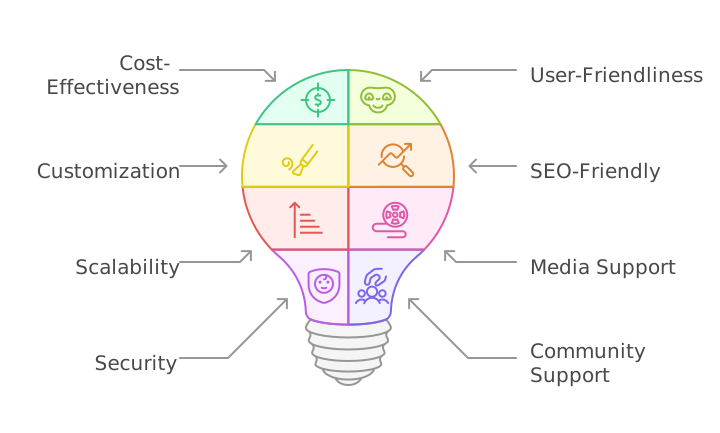
It's Free & Open-Source
The core WordPress software itself costs you absolutely nothing.
This is a massive advantage! You just pay for hosting and a domain name.
Beginner-Friendly & Easy to Use
This is a big one!
WordPress is designed for non-technical users. The dashboard is intuitive, making it easy to create pages and posts, install themes, and add plugins.
Yes, there’s a short learning curve to get familiar with everything, but it’s very manageable, and help is readily available.
Extensive Customization & Flexibility
This is where WordPress truly shines! You have tens of thousands of themes to choose from to control your site’s design and layout, and even more plugins to add virtually any functionality you can imagine without writing a single line of code.
Need a contact form? There’s a plugin!
Want to sell products? There’s a plugin (WooCommerce!).
Want to improve your SEO? There are plugins! The possibilities are endless!
SEO-Friendly
WordPress is built with search engine optimisation in mind. Its structure makes it easier for search engines like Google to understand and rank your content. Plus, with powerful SEO plugins, you can boost your rankings even further.
Scalable
Whether you’re starting a small personal blog or planning for a massive enterprise site with high traffic, WordPress can grow with you. It’s a platform built for the long haul.
Supports All Media Types
Easily include text, images, videos, audio, and more to create rich, engaging content.
Secure (with Maintenance)
WordPress itself is robust, and when you follow best practices like keeping your site updated and using security features and plugins, it’s a very secure platform.
Large & Supportive Community
This is gold for beginners! Because WordPress is so popular, there are countless free resources available online – blogs, tutorials, forums, groups, and experts ready to help you out.
It’s truly amazing how much you can achieve with WordPress!
Is Your Marketing Automation Ready for 2025?
Automate workflows, nurture leads across channels, and harness AI-driven insights to deliver timely, personalized customer experiences at scale. Empower your marketing team with streamlined processes that boost efficiency, improve campaign performance, and accelerate revenue growth.
What Can You Build with WordPress CMS? Common Use Cases
One of the coolest things about WordPress is its incredible versatility. It’s definitely not just for blogging anymore! Thanks to the amazing theme and plugin ecosystem, you can build almost any type of website you can dream up.
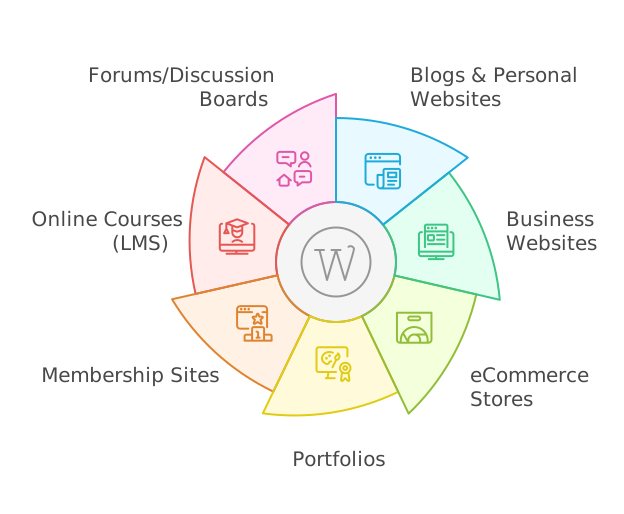
Here are some common examples:
Blogs & Personal Websites
This is where it all began, and WordPress remains an excellent platform for publishing articles, managing comments, and organizing content.
Business Websites
Create a professional online presence for your company. Showcase services, share information, and generate leads using features like contact forms and email signups.
eCommerce Stores
Easily sell physical or digital products online!
Plugins like WooCommerce are specifically designed to add full e-commerce functionality to your WordPress site.
Portfolios
Perfect for artists, photographers, writers, and other creatives to showcase their work.
Membership Sites
Want to offer exclusive content? Build a site where users can sign up for different membership tiers.
Online Courses (LMS)
Share your knowledge by creating and selling online courses using specialised Learning Management System (LMS) plugins.
Forums/Discussion Boards
Build a community site where users can discuss topics and interact with each other.
These are just a few examples!
The key is that themes give you the right look and feel, and plugins add the specific features you need for your site’s purpose.
Getting Started: Setting Up Your WordPress.org Site
Ready to build your dream website? Awesome!
Since we’re focusing on the powerful WordPress.org, let’s walk through the first steps.
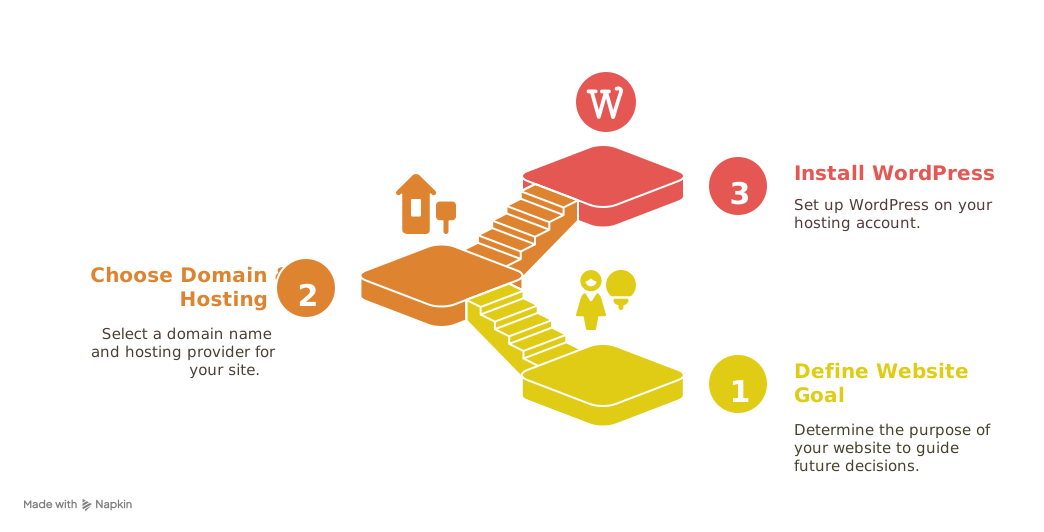
Step 1: Define Your Website Goal
Before you do anything else, take a moment to think about what you want your website to achieve. Is it to share your writing, sell products, showcase your art, or something else entirely? Having a clear goal will help guide your decisions later on, like choosing a theme or selecting plugins.
Step 2: Choose a Domain Name & WordPress Hosting
To get your WordPress.org site online, you need two main things: a domain name (your web address, like example.com) and web hosting (space on a server where your website files are stored and made available on the internet). Think of the domain name as your street address and hosting as the house itself.
Choosing a reliable WordPress hosting provider is super important for your site’s speed, security, and overall performance. Many hosts offer plans specifically optimized for WordPress. Companies like Bluehost, SiteGround, Hostinger, and WP Engine are popular choices. Some hosts, like Bluehost, even offer a free domain name for the first year when you sign up for hosting.
Step 3: Install WordPress
This used to be a technical hurdle, but today, most good hosting providers make it incredibly easy! Many hosts offer a one-click WordPress installation directly from your hosting account dashboard. It often takes just a few clicks. If your host doesn’t offer a one-click install or you prefer more control, manual installation is also possible, though slightly more complex. Once installed, you’re ready to access your site!
Wasn’t that exciting? Your foundation is now in place!

Suggested reading:
How B2B Businesses Can Reduce Manual Tasks by 50% with CRM Workflow Automation
Mastering the Basics: Navigating the WordPress Dashboard
Once WordPress is installed, you’ll access your website’s control panel – the WordPress dashboard. You can usually get there by typing your website’s address followed by /wp-admin (e.g., yourwebsite.com/wp-admin/) and logging in with the credentials you created during installation.
The dashboard is where all the magic happens!
The left-hand sidebar is your main navigation. Here are some of the key areas you’ll get to know:
- Posts: This is where you’ll manage your blog entries or news articles. They are typically displayed in reverse chronological order (newest first).
- Pages: Use this section for static, timeless content like your “About Us,” “Contact,” or “Privacy Policy” pages.
- Appearance: This is where you control your site’s design. You’ll manage Themes, customize your design, set up navigation Menus, and arrange Widgets.
- Plugins: This is your gateway to adding new functionality! You can install, activate, and manage all your plugins here.
- Settings: Configure various site options, such as your site title and tagline, reading settings (like setting a static homepage), discussion settings (for comments), permalinks (your URL structure), and more.
Getting familiar with the dashboard might take a little bit of clicking around, but it’s logically organised and built for ease of use. You’ll be navigating it like a pro in no time!
Is Your Business Tools Integration Ready for 2025?
Seamlessly connect your CRM, ERP, and collaboration platforms to unify data, automate processes, and eliminate silos. Empower your organization with a cohesive toolkit that enhances productivity, drives informed decision-making, and scales with your evolving needs.
Customizing Your Site's Look: Themes and Appearance
Okay, the foundation is set, but right now your site probably looks pretty basic. Time to make it look amazing! In WordPress, your site’s design and layout are controlled by a theme. Think of it as your website’s outfit – it determines colours, fonts, layout, and overall style without changing your content.
Choosing a theme is an exciting step!
There are thousands of free themes available in the official WordPress theme directory and countless premium (paid) themes available from developers and marketplaces.
Here are some essential things to consider when choosing a theme:
- Is it mobile-friendly (responsive)?
With so many people browsing on phones and tablets, your theme must look great on all screen sizes.
- Does it load quickly?
Site speed is important for user experience and SEO.
- Is it compatible with major plugins?
Make sure your theme plays nicely with essential plugins you plan to use.
- When was it last updated?
Regular updates mean better security and compatibility.
- Does it match your website’s purpose?
A theme for a photography portfolio might have different features than a theme for a business website.
- Consider the support and reviews: What do other users say?
Is there good documentation?
You can browse and install themes directly from your dashboard under Appearance > Themes > Add New. Once installed, you can customize it. The customization options vary depending on the theme, but you’ll typically configure things like your site logo, colours, fonts, header, footer, and menus. The Appearance > Customize menu is your go-to for most themes, while newer “block themes” use the Appearance > Editor.
You can also add extra bits of content or functionality to specific areas like sidebars or footers using Widgets. And if you want even more visual control over your layouts, you can use Page Builder plugins like SeedProd, Elementor, or Divi. These tools let you build pages using a drag-and-drop interface, often with ready-made templates.
Don’t feel pressured to perfect everything right away! You can always adjust your theme settings later.
Adding Functionality: Plugins
Themes make your site look good, and plugins make it do things! Plugins are like apps for your WordPress website – they add specific features and functionality without requiring you to write code. There are over 59,000 plugins available in the official WordPress repository, and many more from third-party developers.
It’s truly mind-blowing what you can add!
Adding a contact form? Plugin!
Want to add social media share buttons? Plugin!
SEO tools? Plugin!
Want to back up your site? Plugin!
Just like themes, choosing plugins wisely is important. Look for plugins that are regularly updated, have good reviews and ratings, and are compatible with your version of WordPress. Installing too many plugins, or plugins from untrusted sources, can potentially slow down your site or create security risks. Stick to reputable plugins that add essential features.
You can easily find and install plugins directly from your dashboard under Plugins > Add New.
Essential Maintenance and Best Practices
Now that your site is set up, customised, and enhanced with plugins, there are a few ongoing things to keep in mind to keep it running smoothly and securely.
Regular Updates
This is critical! WordPress, themes, and plugins are frequently updated to fix bugs, improve security, add features, and maintain compatibility. Make sure you keep everything updated! It’s one of the best ways to protect your site.
Security
While WordPress is secure, you have to do your part. Use strong, unique passwords, install an SSL certificate (most hosts include this for free), and consider using a reputable security plugin to help protect against malware and attacks.
Backups
Imagine if something went wrong and you lost all your hard work! Regularly backing up your site is non-negotiable. Many hosting providers offer backups, or you can use a backup plugin. Make sure your backups are stored securely, ideally in an off-site location.
Performance/Speed
A fast website is better for user experience and SEO. You can improve speed by choosing a good host, optimising your images, and using caching plugins.
Basic SEO
Beyond using an SEO plugin, remember basics like using relevant keywords, writing descriptive meta descriptions, adding alt text to images, and using clear, keyword-rich URLs (permalinks) with dashes instead of underscores.
Comment Management
If you enable comments, configure your settings and consider a spam prevention plugin.
Taking a little time for maintenance goes a long way in keeping your site healthy and secure!
Taking Your Site Further & Finding Help
You’ve built your site, added content, and customised it – fantastic! What’s next? The journey with WordPress is just beginning! You can continue to expand your site, adding new types of content or functionality.
One super important step for any website owner is to start building an email list right away. Email marketing is a powerful way to stay connected with your visitors and customers.
And remember that awesome community we talked about? They are your friends! If you get stuck, there is a wealth of free resources to help you.
- Blogs and Tutorials: Sites like WPBeginner and HubSpot offer countless step-by-step guides and articles.
- Video Tutorials: Many sites and YouTube channels provide visual guides.
- Support Forums & Community Groups: Connect with other WordPress users and experts.
- Official Documentation: The official WordPress site has comprehensive guides.
Pro Tip: When searching for help on Google, try adding site:wpbeginner.com (or the name of another trusted site) to your search query to find specific answers quickly.
Even experienced users run into questions or challenges, but with the incredible amount of help available, you can overcome them!
Navigating Potential Challenges
We’ve shared all the amazing upsides, but let’s be real for a second – building a website isn’t always 100% smooth sailing. There might be a slight learning curve initially, figuring out how everything works in the dashboard. You might encounter plugin conflicts where two plugins don’t get along. And, unlike hosted platforms, you are responsible for your own maintenance and security.
But here’s the key: these challenges are manageable, especially with all the resources available. And the trade-off for having full control, flexibility, and ownership with WordPress.org is absolutely worth it for most people. Don’t let these potential bumps in the road discourage you!
Start Building Your Dream Website Today!
Wow, we’ve covered a lot of ground! We’ve explored what WordPress CMS is, why it’s such a phenomenal choice, what incredible things you can build with it, and the essential steps to getting your own site up and running.
WordPress CMS is a powerful, flexible, and incredibly accessible platform that puts the ability to create a professional website right into your hands. You don’t need to be a coding wizard; you just need a little guidance and enthusiasm!
Building a website is an exciting journey, and with WordPress, you have the world’s most popular and well-supported platform by your side. You have themes to make it beautiful, plugins to make it functional, and a massive community ready to help whenever you need it.
So, are you ready to take the leap?
Stop dreaming and start doing! Follow the steps, explore the possibilities, and have fun building your dream website with WordPress CMS!
The online world is waiting for you.
Harness the world’s most popular content management system to effortlessly set up, customize, and scale your site—no coding required.
Start Building Your Dream Website Today.